Introducing SCIM 2.0 Provisioning: Automate User Management in Linkinize
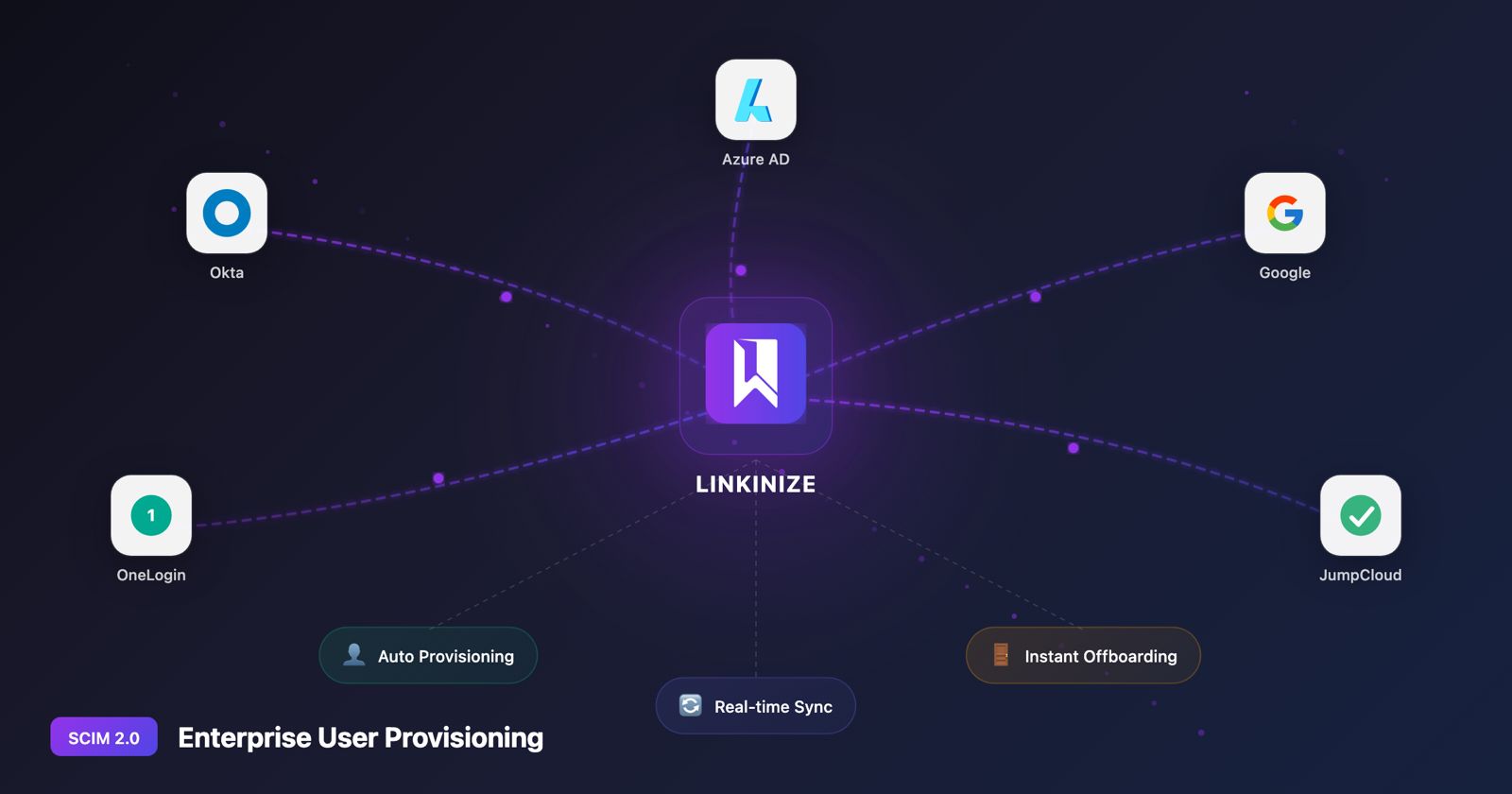
Managing user access across your organization shouldn’t be a manual, error-prone process. That’s why we’re excited to announce SCIM 2.0 provisioning support for Linkinize Enterprise customers.
With SCIM (System for Cross-domain Identity Management), you can now automatically provision, update, and deprovision users directly from your identity provider. No more manual invites. No more forgotten access. No more security risks from delayed offboarding.
What is SCIM and Why Does It Matter?
SCIM 2.0 is an open standard protocol that enables automated user identity management between your Identity Provider (IdP) and applications like Linkinize. It’s the backbone of modern enterprise identity workflows.
The Problem SCIM Solves
Before SCIM, IT teams faced common challenges:
- Manual user provisioning – Adding each employee to every app individually
- Delayed offboarding – Former employees retaining access for days or weeks
- Inconsistent user data – Names and roles out of sync across systems
- Compliance risks – No audit trail of who has access to what
How SCIM Changes Everything
With SCIM enabled, your identity provider becomes the single source of truth:
| Action in IdP | Result in Linkinize |
|---|---|
| Add user to group | User automatically provisioned with correct workspace access |
| Update user profile | Name and attributes sync automatically |
| Remove user from group | User instantly deactivated, access revoked |
| Disable user account | Immediate offboarding across all workspaces |
Supported Identity Providers
Linkinize SCIM 2.0 works with all major enterprise identity providers:
Fully Tested & Supported
- Okta – Full user lifecycle management with incremental sync
- Microsoft Entra ID (Azure AD) – Seamless integration with Microsoft 365 environments
- Google Workspace – Native support for Google Cloud Identity customers
Also Compatible
- OneLogin – Enterprise identity management
- JumpCloud – Cloud directory platform
- Ping Identity – Enterprise SSO and identity solutions
- Any SCIM 2.0 compliant provider – Standard protocol support
Key Features of Linkinize SCIM Integration
Automatic User Provisioning
When employees join your organization and are added to the appropriate IdP group, they’re automatically provisioned in Linkinize:
- User account created instantly
- Added to designated workspaces
- Ready to collaborate immediately
- No invitation emails or manual setup required
Real-Time User Updates
Keep user information synchronized automatically:
- Name changes reflect immediately
- Department moves update workspace access
- Role changes propagate across the system
Instant Offboarding
When an employee leaves or changes roles:
- Access revoked within seconds of IdP change
- User deactivated (not deleted) to preserve data integrity
- Audit trail maintained for compliance
- No lingering access risks
Workspace (Group) Sync
SCIM Groups map directly to Linkinize Workspaces:
- Create workspaces from IdP groups
- Manage membership centrally
- Keep team structures aligned with your organization
How SCIM Provisioning Works
Step 1: Enable SCIM in Linkinize
Organization admins can enable SCIM from the Plugins settings:
- Navigate to Organization Settings > Plugins > SCIM
- Toggle SCIM provisioning On
- Generate a Bearer Token (shown once – save it securely)
- Copy your SCIM Base URL
Step 2: Configure Your Identity Provider
Use the credentials from Linkinize to configure your IdP:
SCIM Base URL:
https://app.linkinize.com/scim/v2Authentication: Bearer Token
Supported Operations:
- Users: Create, Read, Update, Deactivate
- Groups: Create, Read, Update, Delete
Step 3: Assign Users and Groups
In your IdP:
- Assign users to the Linkinize application
- Configure group pushes for workspace sync
- Set up attribute mappings (email, name, external ID)
Step 4: Verify Provisioning
Once configured, test the integration:
- Add a test user in your IdP
- Verify they appear in Linkinize within seconds
- Remove them and confirm deactivation
Security & Compliance Benefits
Zero-Trust Access Management
SCIM enables a zero-trust approach to access control:
- Centralized identity governance – One place to manage all access
- Immediate access revocation – No delay between IdP change and app access
- Principle of least privilege – Users only get access to assigned workspaces
Compliance & Audit
Meet regulatory requirements with confidence:
- SOC 2 Type II – SCIM integration supports compliance frameworks
- GDPR – Automated data lifecycle management
- ISO 27001 – Centralized access control documentation
- Complete audit trail – Every provisioning action is logged
Data Protection
Your security is our priority:
- Bearer tokens are hashed – Raw tokens never stored
- TLS 1.3 encryption – All SCIM traffic encrypted in transit
- Organization isolation – SCIM tokens scope strictly to one organization
- No cross-tenant access – Complete data segregation
SCIM vs. Manual User Management
| Aspect | Manual Management | SCIM Provisioning |
|---|---|---|
| Onboarding time | Hours to days | Seconds |
| Offboarding time | Hours to weeks | Instant |
| Human error risk | High | Eliminated |
| IT admin overhead | Significant | Minimal |
| Compliance audit | Manual documentation | Automatic logging |
| User data accuracy | Often outdated | Always current |
| Scalability | Limited | Unlimited |
Frequently Asked Questions
What happens to existing users when I enable SCIM?
Existing users created through registration or invitation remain unchanged. SCIM only manages users it provisions. You can gradually migrate to SCIM-managed users over time.
Can SCIM delete users permanently?
No. SCIM deactivates users rather than deleting them. This preserves data integrity, audit trails, and allows for easy reactivation if needed.
What if a user exists in both SCIM and was manually invited?
SCIM will not overwrite manually managed users. If you attempt to provision an existing user via SCIM, you’ll receive a conflict response. This prevents accidental overwrites.
Can I use SCIM alongside SAML SSO?
Yes! SCIM and SAML SSO complement each other perfectly:
- SAML SSO handles authentication (who can log in)
- SCIM handles provisioning (who has accounts and access)
Most enterprise customers use both together.
Which plan includes SCIM?
SCIM provisioning is available exclusively on the Enterprise plan. Contact us to learn more about Enterprise features.
How do I revoke SCIM access?
Organization admins can revoke the SCIM token at any time from the Plugins settings. This immediately disables all SCIM operations while preserving existing user data.
Getting Started with SCIM
For Existing Enterprise Customers
SCIM is available now in your Organization Settings:
- Go to Settings > Plugins > SCIM
- Enable SCIM provisioning
- Follow the setup guide for your IdP
For Teams Considering Enterprise
SCIM provisioning is one of many enterprise features designed for organizations that need:
- Automated user lifecycle management
- Advanced security and compliance
- Centralized identity governance
- Dedicated support and SLAs
Contact Sales to discuss your requirements or Start a Trial to explore Enterprise features.
What’s Next
We’re continuing to invest in enterprise-grade features to make Linkinize secure, scalable, and easy to manage at any team size. Coming soon:
- SCIM audit logs – Detailed provisioning history in your dashboard
- Custom attribute mapping – Map additional IdP attributes to Linkinize fields
- Provisioning rules – Conditional logic for workspace assignments
Learn More
Have questions about SCIM provisioning? Contact our team – we’re here to help.